what is savvy?

drive.web savvy trend screen

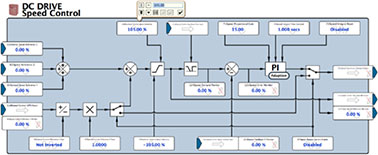
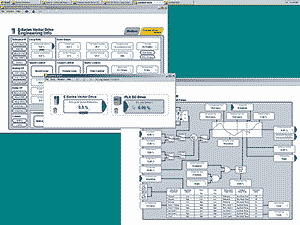
savvy is a suite of intuitive software tools used to design, program and control drive.web distributed control systems. Graphical function blocks are linked by drag 'n' drop connections to build your control scheme. A signal flow diagram option displays your system configuration in a clear, easy-to-navigate format with access to every parameter, drive and device and provides concise project documentation.
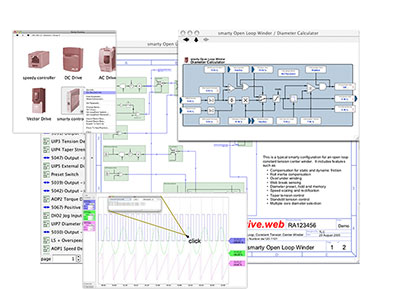
The drive.web environment incorporates the savvy suite of software tools and utilities that will all run on a wide variety of operating systems including Windows, Mac OSX, Unix, Linux and Solaris platforms. The drive.web savvy tools are all automatically updated online from the support utilities at the www.driveweb.com web site.

Use savvy "phantoms" to create systems which can be downloaded later into the real devices.

savvy can be downloaded free of charge from driveweb.com and provides powerful navigation features including, pan, zoom, jump to, drill down and browse.

savvy features

savvy programming

The savvy function blocks are full featured application processors that include all the attributes that you need for professional systems solutions. Blocks incorporate all the features such as scaling, ranging, signal inversion, hysteresis, etc. that are essential to reliable, high performance processing. The following examples are typical of the savvy way:

drive.web savvy multifunction block

Dynamic graphics in blocks such as the Multifunction change to show the true state of components such as "contacts" or "relays".

drive.web savvy arithmetic block

The Arithmetic block performs all the functions of add, subtract, multiply and divide. Features such as value inversion, scaling, range limiting and hysteresis ensure the flexibility needed for professionally engineered solutions.

drive.web savvy PID block

The PID incorporates input scaling, integral preset and reset, output clamps and scaling, access to the time constants to allow external control in adaptive systems and filter. Monitoring points are provided for PID term values, error and output.

drive.web savvy parameter setter

Changing parameter values is easy - simply click on the parameter icon to open the setter and either scroll to or key in the new value. The "Return" and "Initial" buttons allow you to go back to the default or the initial session values

drive.web savvy trend screen

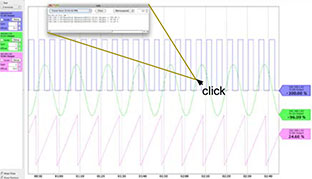
A "trend" window can be created at any time to display the values of multiple parameters from any device in the system. Passing the cursor over a trend trace will show you the parameter identity and value. The trend timespan can be changed as desired.

drive.web savvy Modbus block

You can make a direct ModbusTCP/IP connection to any parameter in a system but savvy provides a convenient block that makes the interface very easy. It groups the connections together in one convenient location to aid documention and monitoring the interface to the outside Modbus world.

drive.web savvy user manual

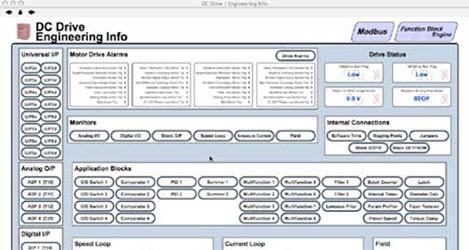
Information is at your fingertips wherever you are in savvy. The full user manual is built into the tools and is only a click away!

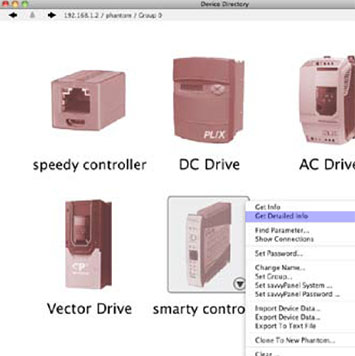
Right click on any device or parameter icon and an information/features window will open to give you access to a wide array of details and action options.

A "hover text" feature displays supplementary information as the cursor passes over an object parameter or link.

Pop-up "tool tips" messages remind you of the function of button icons.

drive.web savvy connection screen

savvy connections between parameters in any device are easily made by "dragging and dropping" the "from" parameter icon onto the "to" icon. Simply pass the cursor over the blue connection arrow to show the source or destination. Click on a connection arrow to jump directly to the other end of the link.

The savvy built-in rules checker ensures that you avoid making invalid connections.

savvy-SFD

Signal Flow Diagram option for the savvy systems design tools

signal flow diagram screen

signal flow diagram screen

The graphical Signal Flow Diagram option adds powerful system design and documentation features including:

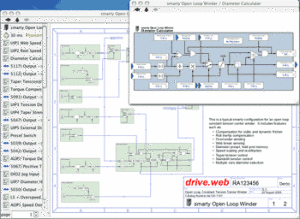
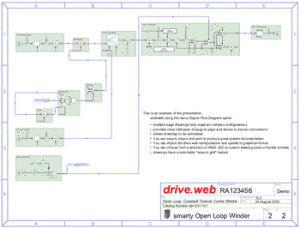
At right are the first two pages of a typical open loop constant tension center winder configuration in a smarty.

Clicking on a function block in the Signal Flow Diagram drills you down into the details and shows parameter values and status.

Function blocks and connections are shown in a list that can be sorted and filtered to show objects with common attributes or states.

Page 2 shows how function blocks can be organized in a logical signal flow manner that makes system design and user comprehension very easy.

The entire drawing data is stored in the drive.web smarty or speedy and can be accessed at any time without the need for externally stored configuration files.

savvy-SFD automatically produces top quality documentation as you design, configure and build your system.

Try the savvy-SFD demo

Open the "File" menu in the basic savvy, select "Demo Mode", check the "Graphical Configurator" box and follow the "Getting started with savvy-SFD" guide in the "Help" menu.

Obtaining & Installing The savvy-SFD Option

Go to the savvy page and follow the instructions to download the version of the basic savvy software you need for your computer operating system.

With your computer connected to the Internet, start the drive.web savvy program and either use an Option Coupon which you can obtain from your distributor or process a credit card transaction.

The savvy program incorporates several very useful documents in the "Help" menu that introduce you to the basics, guide you through the details and help you plan, implement and document your system designs.

savvy Training

savvy is a very powerful drive and systems design and configuration tool and we offer both introductory and advanced training courses that will help you get the most out of your projects. For details please call us at +1-410-604-3400.

savvy Hardware and Software requirements

[top]